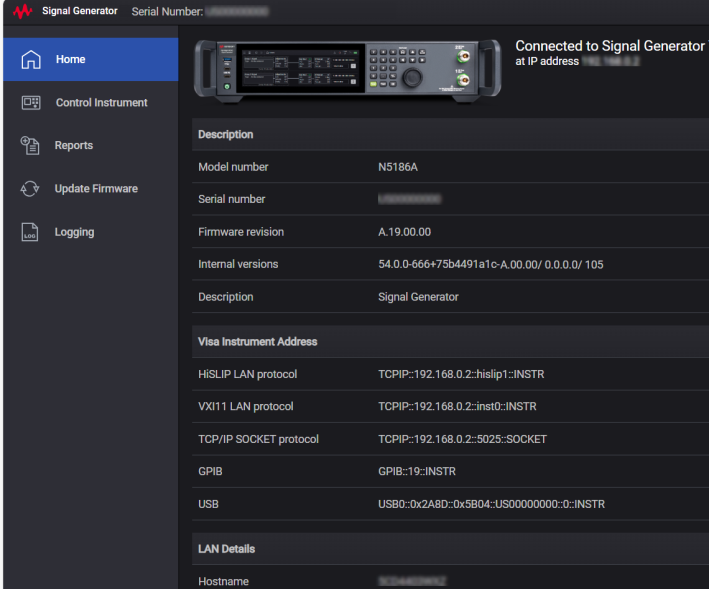
When you remotely access your instrument via a Web browser, the Web UI Home page (shown below) is displayed.
The following information is accessible from the Web UI Home page.
| Feature | Description | Accessible from | Requires Login |
| Home |
Displays the following information for your instrument:
|
Side navigation bar | No |
| Help ("?" icon) | Displays instrument's help documentation. | Right side of header | No |
| Log in (user icon) | Prompts login and allows for password changing. See Authentication and Change Password to know more. | Right side of header | No |
| Control Instrument |
Allows you to control your instrument remotely by launching the instrument software GUI in the browser. You must first log in to control the instrument. See Authentication to know more. You can return from controlling the instrument to the Web UI Home page via Web UI Home in the instrument’s System menu. |
Side navigation bar | Yes |
| Reports | Aids in procurement of reports intended for Keysight Support Engineers to assist in the diagnosis of undesirable instrument behaviors. See Service menu > Report Generation. | Side navigation bar | Yes |
| Update Firmware |
Allows uploading a .ctp file via your browser and then using this file to update the firmware of the instrument. You can upload the .ctp file from:
|
Side navigation bar | Yes |
| Logging | Allows configuration of log files intended for Keysight Support Engineers to assist in diagnosis of undesirable instrument behaviors. See Service menu > Logging. | Side navigation bar | Yes |
To control the instrument remotely using a Web browser, you first need to log in. Login sessions are valid for 100 days, until the password is changed, or until manually logged out.
The default password is "Keysight". It is recommended to change this as early as possible.
No SCPI, GUI only
Allows you to change the password for accessing the instrument remotely via a Web browser.
The password can be changed from any logged in remote browser, or directly from the instrument’s front panel in the Settings menu, under Preferences.
Password requirements:
minimum 8 characters in length
must contain at least one lowercase letter
must contain at least one uppercase letter
|
Preset |
This is unaffected by a Preset but is set to "Keysight" on a "Restore System Settings to Default Values." |
|
State Saved |
Persistent, survives preset and power cycle but not saved in the instrument state. |